Snippets
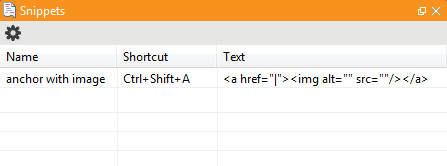
Snippets let you store content for quick reuse.
How to use a snippet
To use a snippet,
|
| • | Open the Snippets view (View > Snippets) and click on a snippet line. |
| • | Or, use the shortcut for that snippet. |
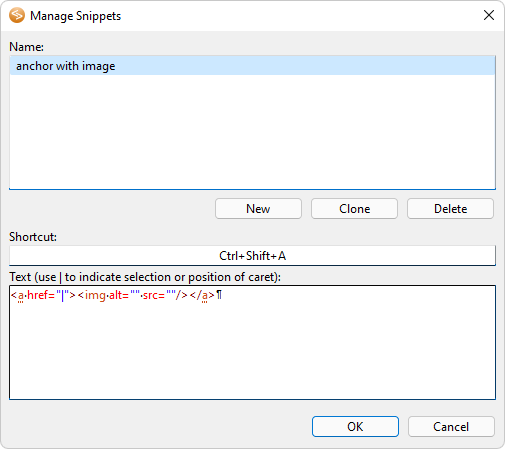
Create a snippet by clicking the edit icon of the left.
Managing snippets
This dialog lets you create, clone and delete snippets. A snippet has a Name, an optional Shortcut and a text that will be placed in the editor.
Surrounding text by a snippet
The | (bar character) indicates the caret (text cursor) or the selection when the snippet is actually used. For instance:
|
| • | When a snippet with text <!--|--> is used and there's no text selected in the active document, text <!----> is inserted in the active document and the caret (text cursor) is placed in between <!-- and -->. |
| • | When a snippet with text <!--|--> is used and text hello is selected in the active document, text hello is replaced by <!--hello--> and the caret (text cursor) is placed just after <!--hello-->. |
See Also
 Welcome!