Editor
In the Editor you write and edit all your documents. An unlimited number of documents can be opened in XMLBlueprint.
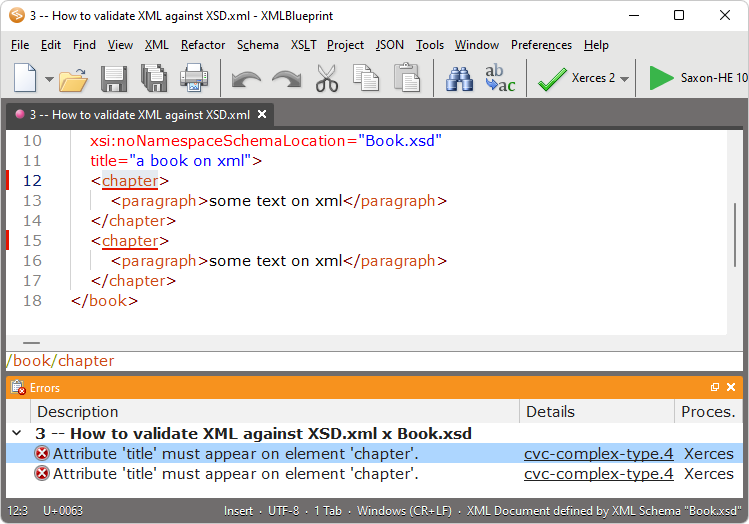
(XMLBlueprint with two open documents)
Basic edit operations
This paragraph is a very brief introduction to the basic edit capabilities of XMLBlueprint. Please see
Editing your XML Document for XML-specific features of the
Editor.
Clipboard
Click Edit > Copy to place an exact copy of the selected text on the clipboard and leave the original untouched. Copy replaces the current clipboard text with the selected items. To insert the text of the clipboard elsewhere, choose Edit > Paste.
Click Edit > Cut to remove the selected text from the Editor. Cut replaces the current clipboard text with the selected text. To insert the text of the clipboard elsewhere, choose Edit > Paste.
Click Edit > Paste to insert the text of the clipboard into the active document. When pasting into the Editor, the text is inserted at the current cursor position. You can paste the current text of the clipboard as many times as you like until you cut or copy new text onto the clipboard.
Undo & Redo
Click Edit > Undo to undo your most recent keystrokes or mouse actions. Undo can
|
| • | reinsert any characters you delete |
| • | delete any characters you insert |
| • | replace any characters you overwrite |
| • | move your cursor back to its prior position |
You can undo multiple successive actions by choosing Undo repeatedly. This removes your changes by "stepping back" through your actions and reverting to their previous state.
Click Edit > Redo to reverse the effects of your most recent Undo. Redo has an effect only immediately after an Undo command.
Line numbers
Click Find > Go To line... to jump to a specific line.
Whitespace
Click Preferences > Editor... to open the Editor Preferences dialog and select [x] Show whitespace (spaces, tabs, newlines) to display whitespace:
|
| • | Newlines are displayed as ¶ |
| • | Spaces are displayed as • |
| • | Tabs are displayed as → |
Bookmarks
You can bookmark up to 9 locations in each document you have open in the Editor.
Press Ctrl+Shift and the number of the bookmark to set or change the location of a bookmark.
Press Ctrl and the number of the bookmark to jump to the bookmark.
For example, press Ctrl+Shift+3 to set the location of bookmark 3. Move the cursor to another line and press Ctrl+3 to jump to bookmark 3. Press Ctrl+Shift+3 again to remove the bookmark.
When a bookmark is set, you see a red box in the left margin of the Editor with the bookmark number in it.
 Welcome!